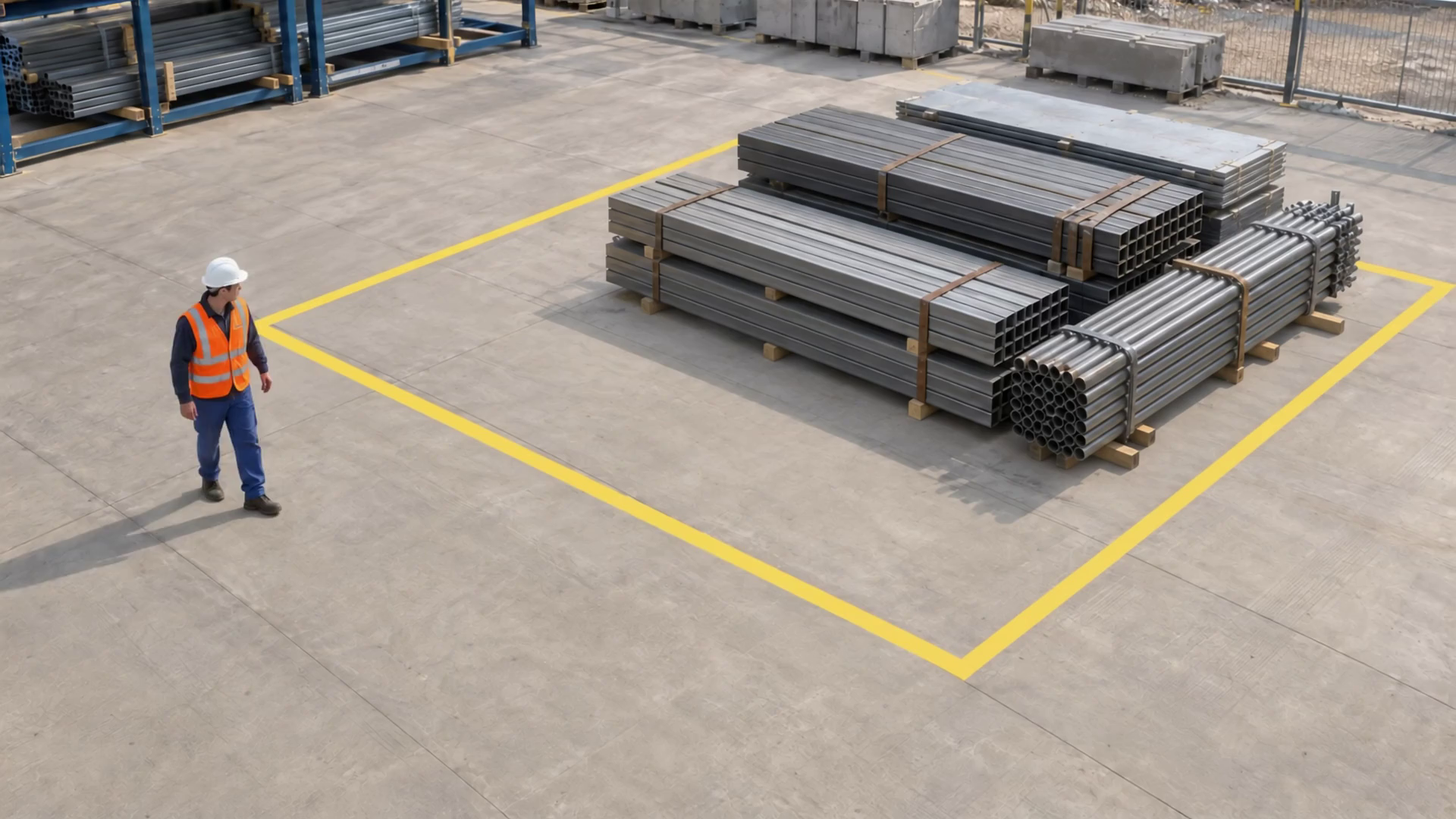
Worker and visible PPE
One worker, a white hard hat and an orange vest are visible in the reviewed frame. This is a visual annotation, not a compliance decision.
A construction site changes every day. Opsyte helps your team keep attention on the zones, routes and access points that matter now. Configure monitoring around selected camera views, surface relevant events and give HSE, site supervisors and security the context to act.
Preparing for launch · tailored walkthroughs available VISION → CONTEXT → ACTION
Temporary scene label; no identity or site authorization is inferred.
One worker, a white hard hat and an orange vest are visible in the reviewed frame. This is a visual annotation, not a compliance decision.
One visible worker in each of the 13 frames manually reviewed at half-second intervals.
Positions and counts were manually reviewed every 0.5 seconds from 0 to 6 seconds. Interpolated boxes are approximate visual annotations, not live model inference. Event markers identify a confirming sampled frame, not an exact crossing instant.
Watch the marked exclusion zone during site activity.
Focus a camera on a clear operational question.
Review the event, its source and the supporting evidence.
Help the right team review and respond to what matters.
Turn a view into useful data. Explore model families for people, service, safety, movement and production. Configure the measurements around your operation—and connect them to the questions that matter.
See when people arrive and how demand changes through the day.
A configured counting view supplies passage counts. The example compares two separate entrance views.
Illustrative data · change the location or period to recalculate every metric and report.
Passage counts in each observation window.
Interval total. Adds interval values for the selected sites and period.
Higher bars show busier arrival periods; the total adds the selected windows and separate sites.
A passage count is not a count of unique customers or verified identities. Overlapping views need duplicate handling.Arrival boundary
Arrival boundary
The illustrative records use equal 15-minute periods. These are example records, not customer measurements.
Example09:00–09:15 · illustrativeEvery measure belongs to a selected camera, location and monitoring area.
ExampleSite A · selected camera and zonePeople counted through the configured entrance or counting boundary during the period.
Example18 observed passagesThe defined entrance or line that gives the count its meaning.
ExampleMain entranceWe map the camera, model, collection fields and report to that decision—and validate what works in your environment.
Explore specific operational jobs—not just a list of AI features. Each example explains the condition, useful evidence and the team’s next step.
Keep attention on the boundaries around active work.
Work-zone overview
A person crosses the configured zone during its monitoring schedule.
Zone-entry event with camera, time and selected scene evidence.
The site supervisor reviews the scene and coordinates the appropriate response.
Illustrative configuration, not a recorded customer outcome. Camera suitability, analysis scope and the response workflow are agreed during setup.
Bring the source, visible condition and supporting evidence into one conversation with the team responsible. Explore a local review example.
Person entered the configured zone
Camera, event time and a selected scene snapshot
You bring the operational question. Together, we define the camera coverage, the analysis and what your team should do with the result.
The next page opens an editable inquiry with your selected industry and scenario. No camera credentials or footage are needed here.
Discuss this pilotUnderstand the practical details before you plan your first deployment.
We assess the selected feeds, views and network access with your IT or CCTV team. Compatible RTSP feeds can connect directly; an on-site frame relay is another option when direct access is impractical.
Yes. Zones, camera selection and objectives are configured around the current site. Review changes with our team so a moved camera or new work boundary is assessed and tuned.
It provides an observation and evidence for the responsible team. Visibility, the work context and your procedures determine the response. Opsyte supports supervision and review; established safety controls remain in place.
Block Gemini works with your site owner, HSE and IT contacts on camera readiness, zones, agents and routing. Agreed setup and refinement use your plan’s enablement allocation; additional scope is agreed separately.
Tell us what your team needs to see, understand or improve. We will help shape the right walkthrough and pilot scope.