
A participant in the conversation
A voice that listens and responds using the knowledge and instructions you provide.
Give your AI the product knowledge, deck and demonstration environment. Bridge can explain the offer, respond to the customer and show how the product works—inside a live meeting.
For sales teams, product specialists and customer onboarding.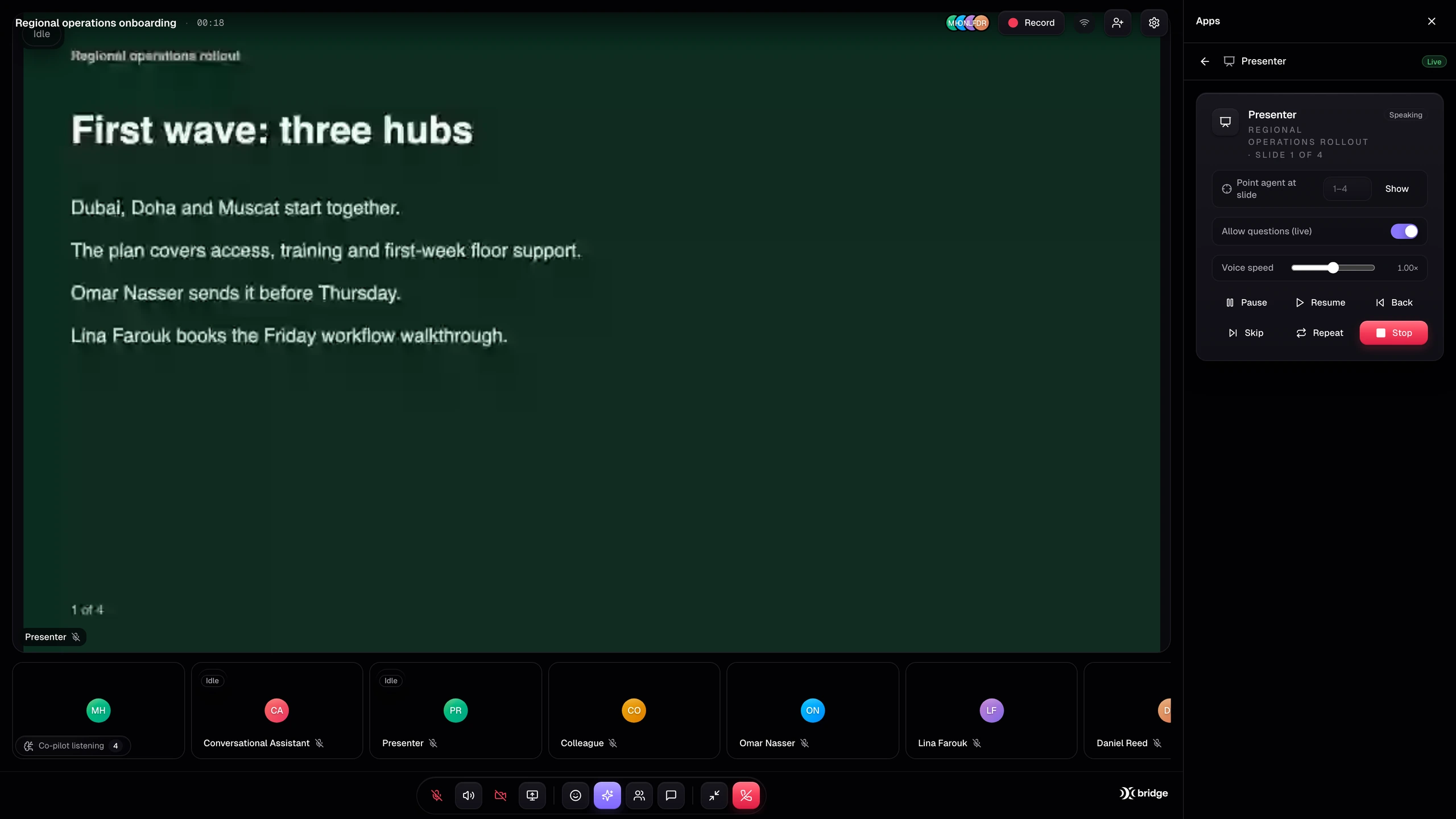
Supplied Bridge product screenshot · example workspace · English interface
A voice that listens and responds using the knowledge and instructions you provide.
Decks, shared screens and browser demonstrations make the product and the idea tangible.
Keep meeting insight connected to the customer record and the workflow around it.
Not every conversation needs the same kind of AI. Choose a voice, a presenter or a colleague that can work in the shared browser.
Give the assistant a role, knowledge, voice and language. It listens, speaks and answers in the meeting. Enable screen understanding when the conversation needs visual context.
Explore the actual meeting workspace, AI Presenter, shared browser and the insight that follows the conversation. Enlarge any screen to see the detail.
Upload a PDF, set up the presenter and move through the story with room for questions and interruptions.
Supplied product screenshotsExample workspace · English product interface
Upload your PDF deck and prepare the AI Presenter for the audience. It narrates the slides, moves through the presentation and handles questions and interruptions. The customer can ask about the part that matters to them instead of waiting through a fixed recording.
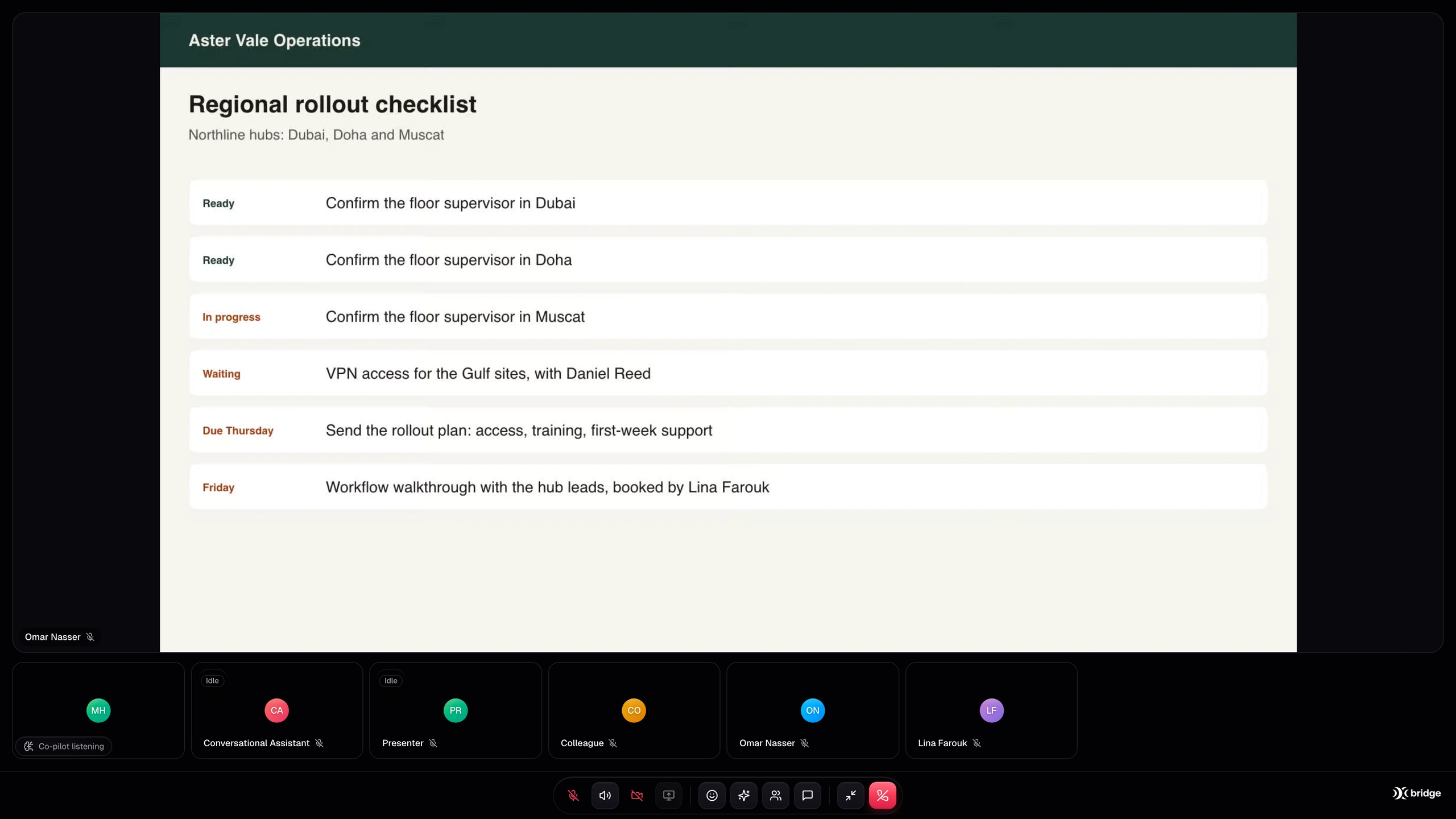
Configure a Colleague with the role, reference material and browser access it needs. It can talk while navigating a supported product demonstration in the shared browser. Define which actions it can perform, which require approval and which stay off.
Sales Intelligence captures meeting context such as requirements, objections and next steps. A configured Cadence connection can associate the selected information with the customer record, helping the team follow up with the conversation in view.
A sales demonstration. A new customer learning your platform. A team working through a plan. Build the AI meeting around the moment.
Illustrative AI workflow film. Actual product screens are shown in the gallery.
Example workspace · English product interface
An AI-led meeting can introduce your offer, walk through the deck and demonstrate a supported product workflow. Capture the customer’s requirements and prepare the next step for your sales team.
Start in Bridge, or work with our team to configure the agent, prepare the demonstration and connect the next step. We scope setup around your audience, tools and business process.
Plan my Bridge setupCreate or enter your Bridge account and choose a plan.
Choose its role, knowledge, voice and meeting instructions.
Upload the deck or configure the browser environment and tools.
Run a meeting, check the handover and refine the experience.
Meet with AI that listens, answers, presents PDF decks and works in a shared browser. Explore Bridge meeting memory, Copilot, translation and human takeover.
Connected productsConnect Bridge AI meetings to Cadence CRM and scope workflows across Echo, Cortex, Catalyst, Sync and Opsyte. Keep conversation context connected to business action.
Bridge puts AI inside the meeting as a participant that can speak and do visual work. Depending on the configured role, it can answer questions, present a PDF deck or operate a shared browser for supported demonstrations and tasks. People can join the same meeting and take over when needed.
Yes. AI Presenter works with an uploaded PDF deck. It narrates and advances slides, responds to questions and interruptions, and supports presentation pacing. Prepare the content and agent configuration for the audience you want to serve.
A configured Colleague can navigate supported workflows in a shared browser while speaking with participants. The demonstration environment, references, access and tool permissions must be prepared for your use case. You can require approval for actions or take over yourself.
These are workflows we can configure with the appropriate workspace and tools: creating slides during the discussion, drawing a diagram or explaining an architecture on screen. Tell us the environment and outcome you need so we can confirm the supported tools and setup.
Cadence is a documented Bridge external integration for mapping selected meeting and sales context into customer records. It requires a paid plan and configuration. Echo-to-Bridge handovers and additional product workflows are separately scoped. Bridge, Cadence and Echo have separate subscriptions.
Open Bridge to create or enter your workspace. Start with a meeting and choose the AI role you need. For a customer-facing agent, prepare your knowledge, deck, demo environment and desired handover. Our team can help scope and configure the setup.
 YOUR NEXT MEETING STARTS HERE
Present. Demonstrate. Collaborate. Connect the meeting to the rest of your business.